
I’ve been messing around with AI in the browser for a while now, and the biggest pain point has always been repetition. You find a prompt that works — say, “convert this recipe to vegan” — and then you have to type it out again on every single page. It’s tedious, and honestly, it kills the flow.
Google is finally addressing this with a new feature called Skills in Chrome. It’s rolling out today for desktop users who have Gemini in Chrome enabled. The idea is simple: save your best prompts as one-click tools, then run them on any page you’re viewing.
How Skills work
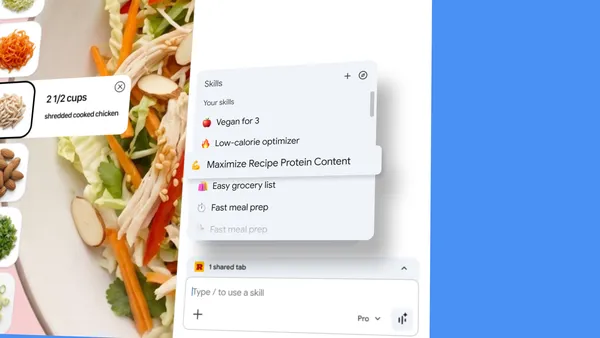
When you write a prompt in Gemini in Chrome and realize you’ll want to use it again, you can save it directly from your chat history. After that, you just type forward slash (/) or click the plus sign (+) button, pick your saved Skill, and it runs on the current page. You can even select multiple tabs to run it on — useful for comparing specs across product pages.
Early testers have been using Skills for all sorts of things:
- Health & wellness: calculating protein macros from any recipe
- Shopping: generating side-by-side spec comparisons across tabs
- Productivity: scanning lengthy documents for key info
These are the examples Google gives, but the real power is that you can make Skills for anything. I’ve already saved one that summarizes blog posts into three bullet points, and another that checks pricing against my budget.
A library of pre-made Skills
Google is also launching a Skills library with ready-to-use prompts for common tasks. Things like breaking down product ingredients, or picking a gift by cross-referencing budget with recipient interests. You can grab one, try it out, and then edit the prompt to fit your exact needs. It’s a nice shortcut if you’re not sure where to start.
Privacy and control
Skills inherit the same security and privacy protections as Gemini in Chrome. That means certain actions — like adding an event to your calendar or sending an email — require confirmation before they execute. Google also mentions automated red-teaming and auto-updates, which is reassuring given how much trust you’re putting in these prompts.
One thing I appreciate: your saved Skills sync across signed-in Chrome desktop devices. So if you build a Skill on your work laptop, it’s available on your home machine. You manage everything by typing forward slash in Gemini and clicking the compass icon.
My take
This is a genuinely useful feature that removes friction from AI-assisted browsing. The execution matters here — making it a single slash key to access your tools, rather than digging through menus, is the right call. My only complaint is that it’s desktop-only for now. I’d love to see this on mobile, where typing prompts is even more painful.
If you use Gemini in Chrome regularly, Skills will save you time. If you don’t, this might be the reason to start.
Comments (0)
Login Log in to comment.
Be the first to comment!